Brave's latest browser release offers Containers for better and easier workflow
摘要
Brave 浏览器最新版本 1.92 正式提供容器功能,用户可通过浏览器设置(brave://settings/braveContent)或右键标签页 “在新容器中打开” 选项,创建不同分类的隔离空间;同一标签页内不同容器间不会共享 cookie 与存储数据;示例包括营销经理同时管理多个社交账号、开发者在不同容器中切换管理员与普通用户模式、员工用 Google 账号查看 YouTube 时避免工作账号与浏览历史关联;此功能利用浏览器原生的存储分区优势,作为便捷身份隔离与工作流构建的基本工具,无需额外插件,已在桌面平台 Windows、macOS、Linux 上逐步推送。
荐读理由
用户可在 Brave 设置里一键启用 Containers 功能,右键标签页就能为同站点创建隔离容器,实现不同身份同时登录或测试应用,省去手动切换浏览器和重复配置的麻烦。
原文
Brave’s latest browser release offers Containers for better and easier workflow
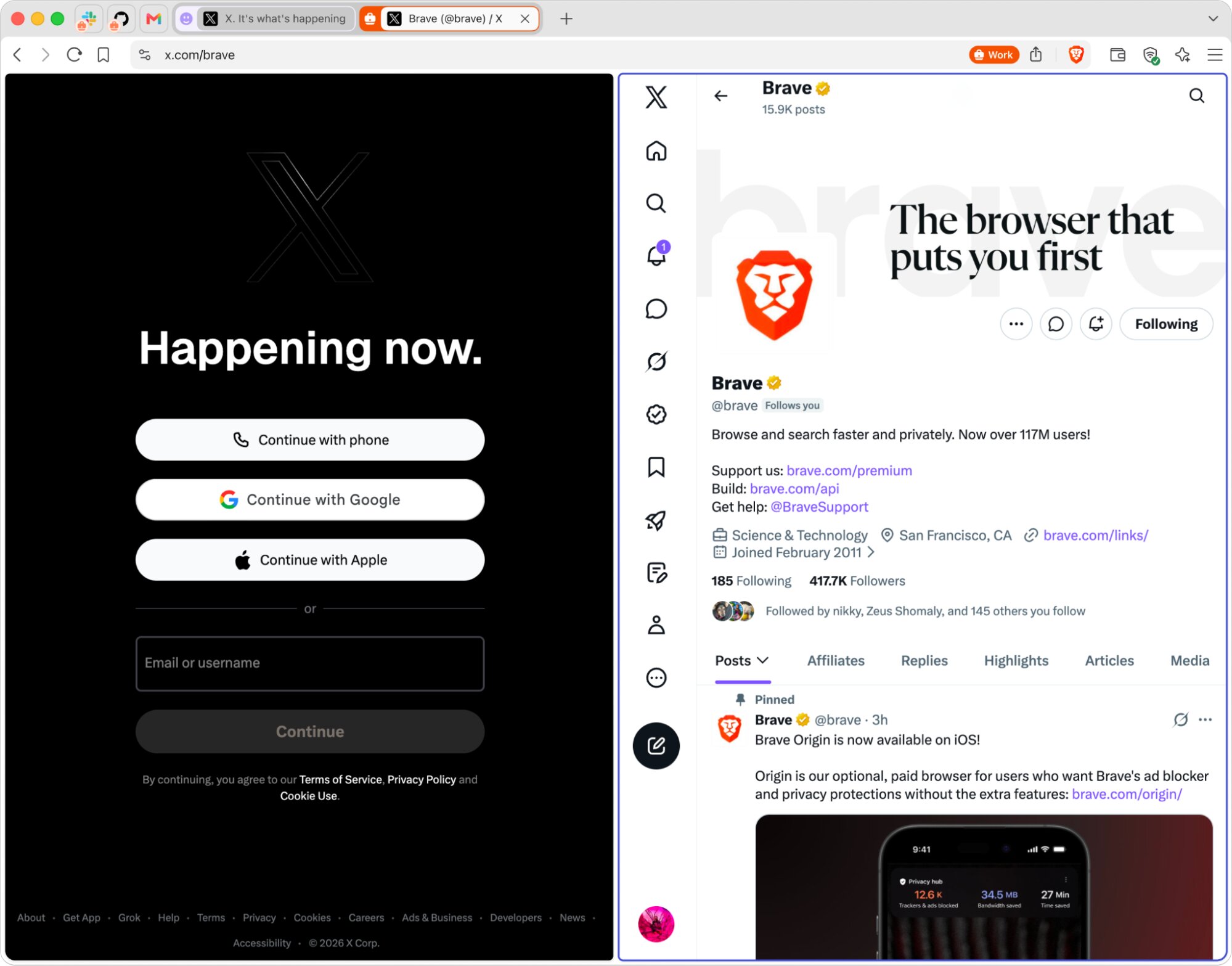
Containers are now available with today’s update of the Brave browser (v1.92), enabling convenience and ease-of-use for everyday tasks. Containers are a way for users to isolate tabs from one another so that their cookies and storage are not shared outside of the container, even when visiting the same site.
For example, a marketing manager might use containers to be logged into two different social media accounts at the same time. A developer might use containers to test an application with one tab logged in as an administrator and another as a regular user. An employee logged into their Google account might want to open YouTube in a separate container to ensure that their viewing history isn’t linked to their work account.
The original idea for Containers came about at a time when browsers gave different sites the ability to share storage with one another via third-party cookies and similar mechanisms. Since this privacy benefit is already built-in to Brave with storage partitioning (which isolates each site and its third-party requests so that trackers can’t follow you across the Web), containers are best understood as a convenience feature to present different identities to a site and as a basic building block for specific workflows.
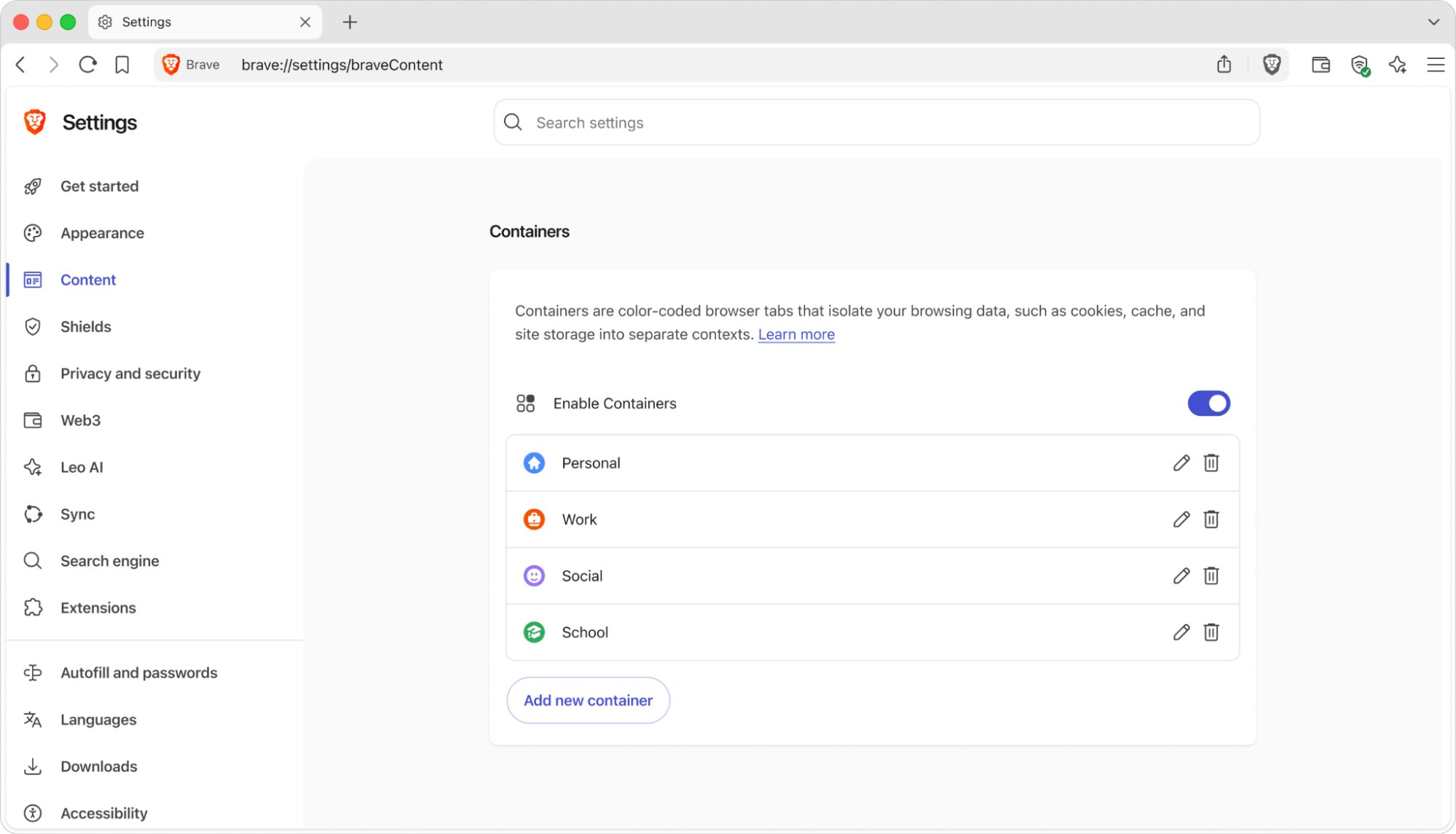
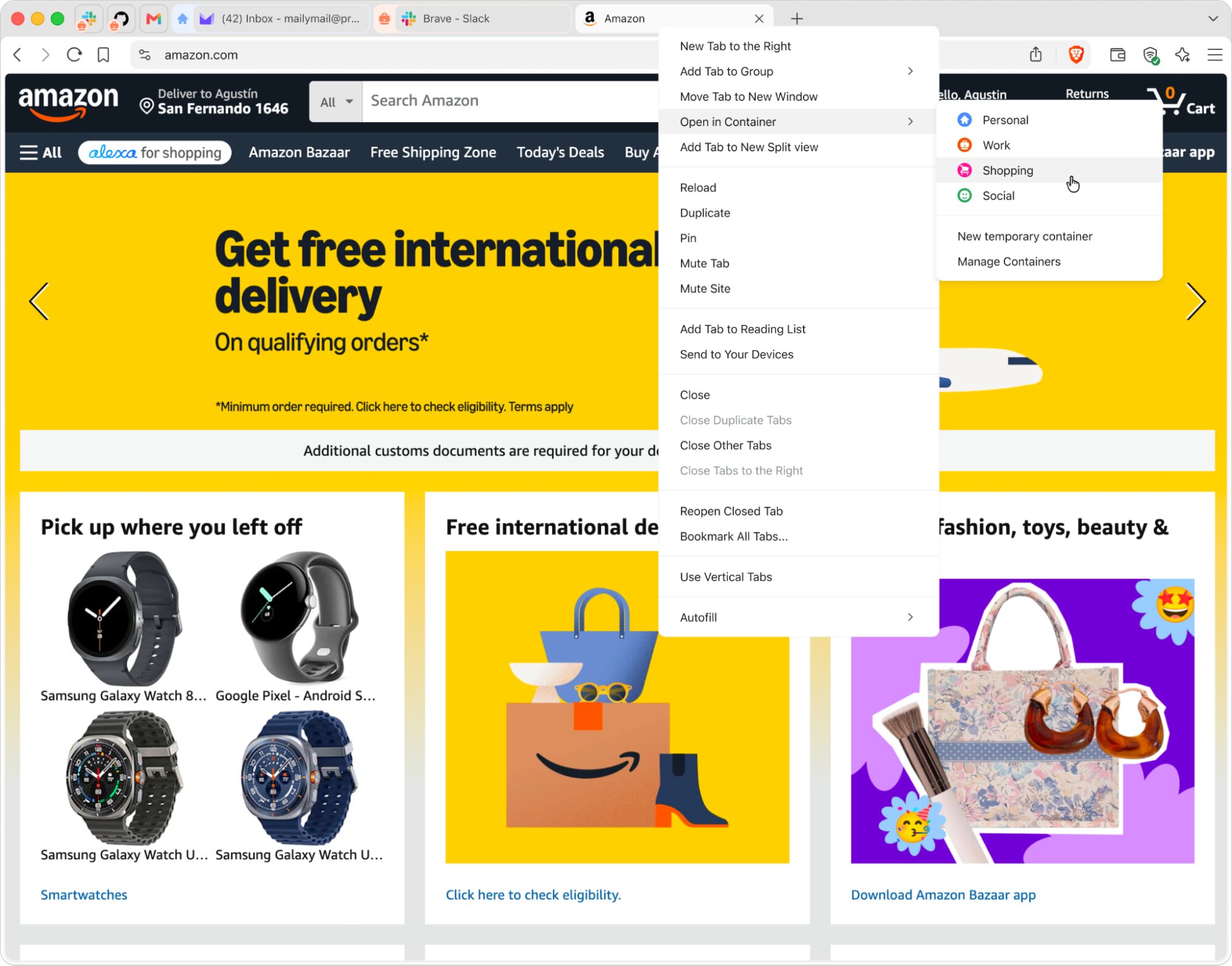
To get started, simply go to Settings (brave://settings/braveContent) and click on Enable Containers. You can also right-click a tab, select “Open in container,” and choose the category.
Containers are now built into Brave 1.92 on all desktop platforms (Windows, macOS, and Linux), no extension/add-on needed. Note that this feature is being rolled out in phases over a few days, so if you don’t see it on your platform yet, please check back soon.

这条对你有帮助吗?